
 Español
  Français
  Deutsch
  Italiano
  Turkish
  Portuguese
  Russian
 Voiser.ai Voiceover User Guide
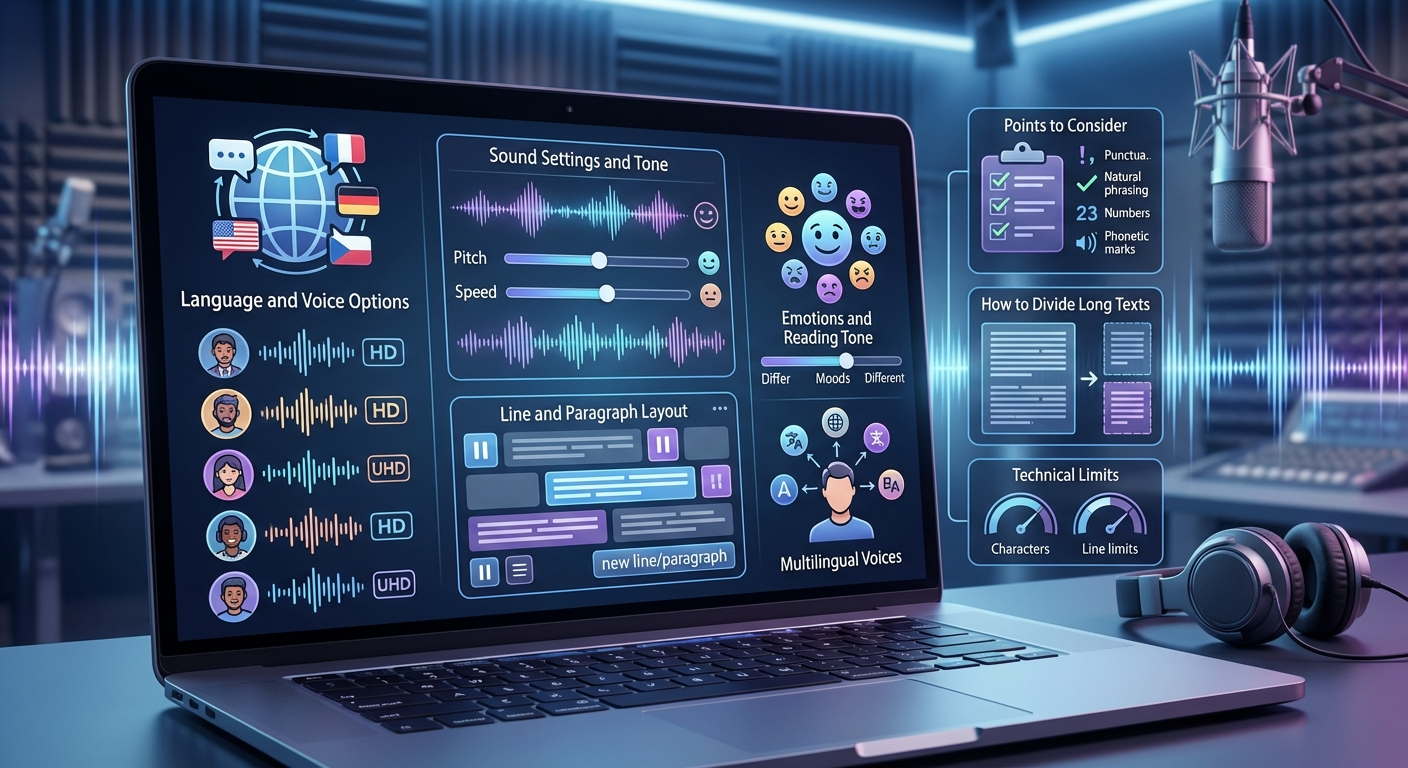
1. Language and Voice Options
Voiser Studio offers 1,000+ different voice options across 140 languages and 200 accents. 800 of these voices are available in HD and UHD quality.
In many languages, you can also use emotional intonation. You can check which languages support this in the voice options under the “Reading Style” section.
2. Voice Settings and Tone Adjustment
The default voice settings are already set to a balanced and optimal level. However, if you want, you can customize the voice by changing the parameters below.
3. Emotions and Reading Tone
You can generate voiceovers with emotions such as angry, excited, empathetic, and more.
Pitch: Determines whether the voice sounds more thin or deep.
Speed: Controls how fast or slow the speech is delivered.
4. Line and Paragraph Structure
Pause duration at the end of a line:
You can add a pause using the “Pause Duration” button at the end of the line.
New paragraph:
Click the “Add New” button to create a new paragraph.
New line:
Press Enter to create a new line within the same paragraph.
Delete line:
Click the trash icon on the right side of the line you want to delete.
5. Multilingual Voices
Voiser Voiceover Studio provides 46 multilingual voice options that can speak multiple languages using the same voice character. With these voices, you can read the same text naturally and fluently in different languages such as Turkish, English, French, German, Arabic, Spanish, and more, all with a single voice.
Important Note:
To help multilingual voices detect the language accurately, it is recommended that your text is at least 200 characters long. For shorter texts, the system may not detect the language correctly and voiceover quality may decrease.
6. Things to Keep in Mind While Creating Voiceovers
Always use punctuation marks. Commas especially help create natural pauses.
Writing in a more conversational tone makes the voiceover sound more natural.
Example: Instead of “I will come to you today.” you can write “I’m gonna come to you today.”
Writing out numbers and phone numbers in words improves clarity.
Example: “Zero five hundred forty-three...”
For tricky pronunciations, you can repeat vowels or use symbols like ^ to guide pronunciation.
Example: “unfortunately” → “unfortuunaately” or “unfortu^nately”
To avoid unwanted elongation, you can join syllables or use apostrophes between them.
Example: “platform” → “plat'form”
Writing sentences without a space after the period makes the system read faster.
Example: “Today is Monday.Tomorrow is Tuesday.”
7. How Should I Split Long Texts?
For long paragraphs, it is recommended to split your content into lines of 2–3 sentences. This way:
It becomes easier to listen to.
You can re-generate only the line you want to change, saving characters.
Reminder: Even voiceovers created for testing purposes will still consume characters from your plan. Characters are used even if you don’t download the audio.
8. Technical Limits
A single line can contain a maximum of 3,000 characters.
You can generate voiceovers for up to 30 lines at the same time.
9. Common Issues and Solutions
Browser-related issues:
Unexpected browser issues may occur. In that case:
Try a different browser (Chrome is recommended)
Restart your computer
Clear your browser cache
Audio file extension is not visible (Safari-specific issue):
Some audio files downloaded via Safari may appear without the .mp3 extension.
In this case, rename the file and manually add .mp3 at the end.
Stay Connected with Us on Telegram and Discord to Follow Us More Closely